Main Menu
Pilots
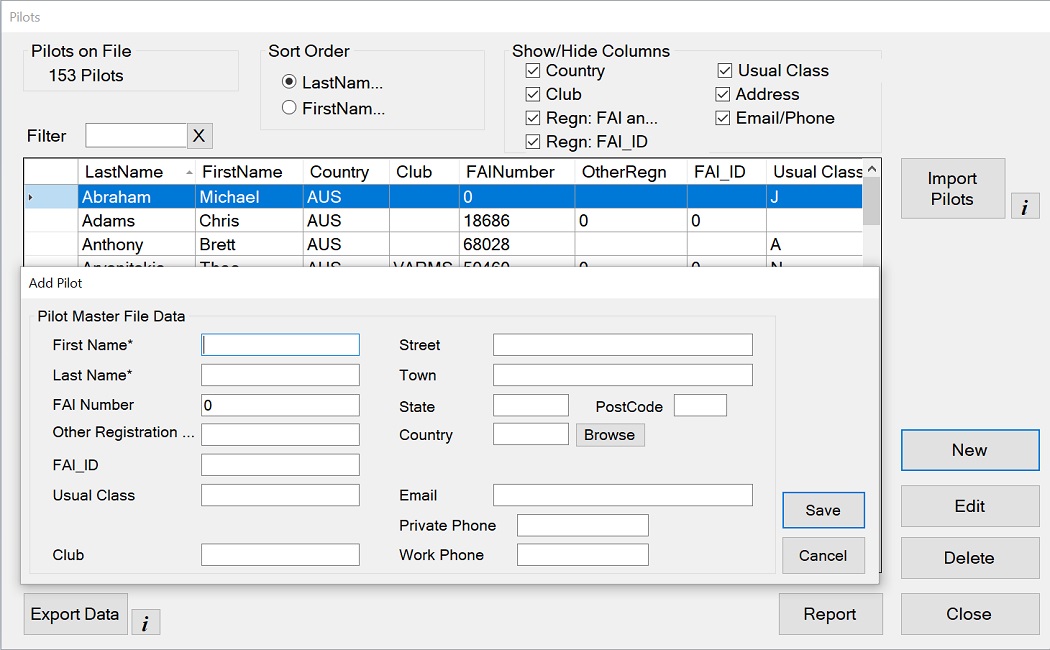
From the Main Menu you can access this screen to add new pilots, edit pilots or delete pilots.
Pilots created here are entered into competitions from the competition setup screen.
There are three fields for pilot registration.
These are used as follows:
- FAI Number - this is the number given to a pilot by their National Association that is affiliated with the FAI.
- Other Registration - this is any pilot registration number that is not related to the FAI.
- FAI ID - this is a number issued by the FAI to pilots who participate in Category 1 or Category 2 events.
Most pilots will not have an FAI ID
Watch the Pilots video.
Note that the field 'Usual Frequency' shown in the video has since been deleted from the program.
Note that the field 'Country Code' now has to be a code from the table 'Country Codes'.
Pilot Setup for Multi-Class Competitions
GliderScore supports competitions where a single pilot can enter to fly in a number of different classes
and all classes fly the same task each round.
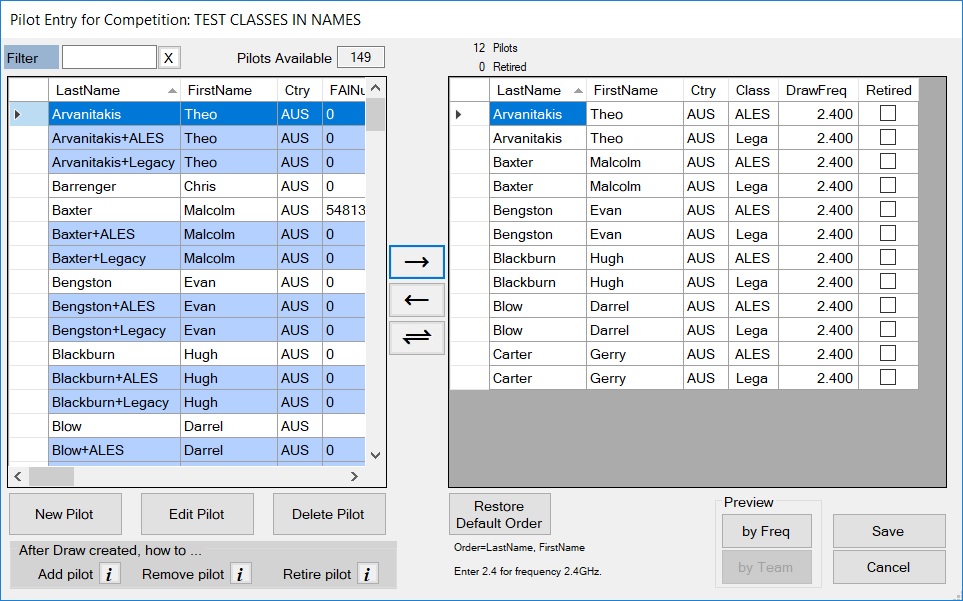
To keep the pilot/class combinations separate for scoring and report purposes you need to set them up in a special way.
- Create a 'Pilot' entry for each pilot/class combination.
- Include the class designation in the Last Name field like this
Anderson+ALES
Anderson+Woody
Anderson+Open
GliderScore recognises the '+' symbol in the last name field and will process it accordingly.
- In Pilot Entry (with UseClasses? selected)
The Class field is automatically filled with the first four characters that follow the '+' symbol.
- All screens and reports that display the pilot class will show the name as just the name.
- In creating audio, a pilot class that is all capitals will be treated as separate letters.
For example, +ALES would sound out each letter A...L...E...S, and not sound like beer (Ales).
In other cases, like Anderson+Woody, these would be treated as separate words, Anderson, Woody.