Competition Setup
This is like a 'Control Panel' for your competition. It puts you in control of how your competition will be run.
Work through, from top to bottom, to complete this step. It looks a bit frightening, but in the end everything will make sense.
A lot of help is available by clicking on the [i]nformation buttons.
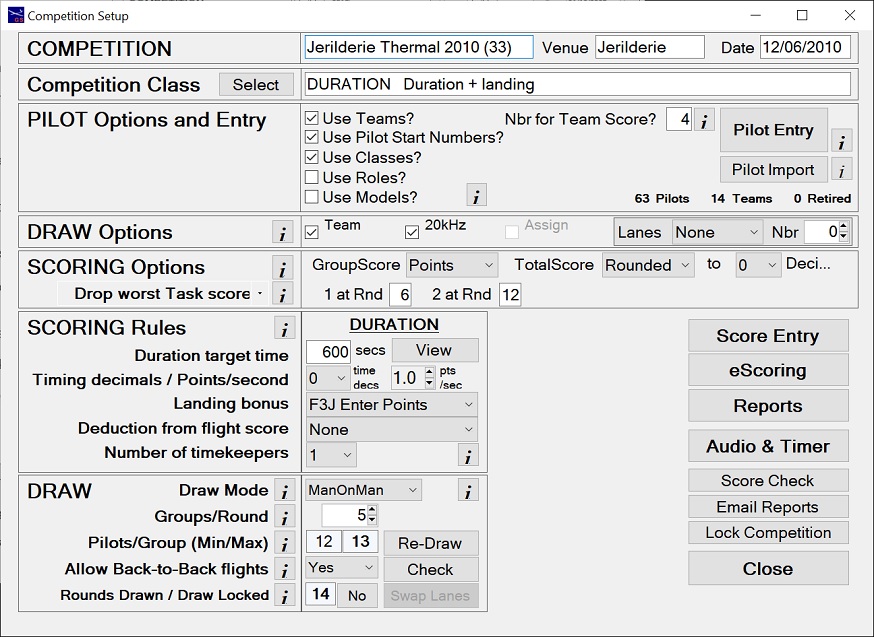
When finished, your competition setup screen will look something like this screen shot.
From here you can access the following screens
- Score Entry - for all scoring tasks.
- eScoring - to use eScoring functions.
- Reports - for access to all reports for preview, print or saving.
- Audio & Timer - integrated audio and timer functions.
- Score Check - for an overall check of scoring entries.
- Email Reports - to email reports directly from GliderScore.
- Lock Competition - prevents changes to entries already made. All reports are available.
Check all the following tabs for complete details.
Competition Setup
New Competition
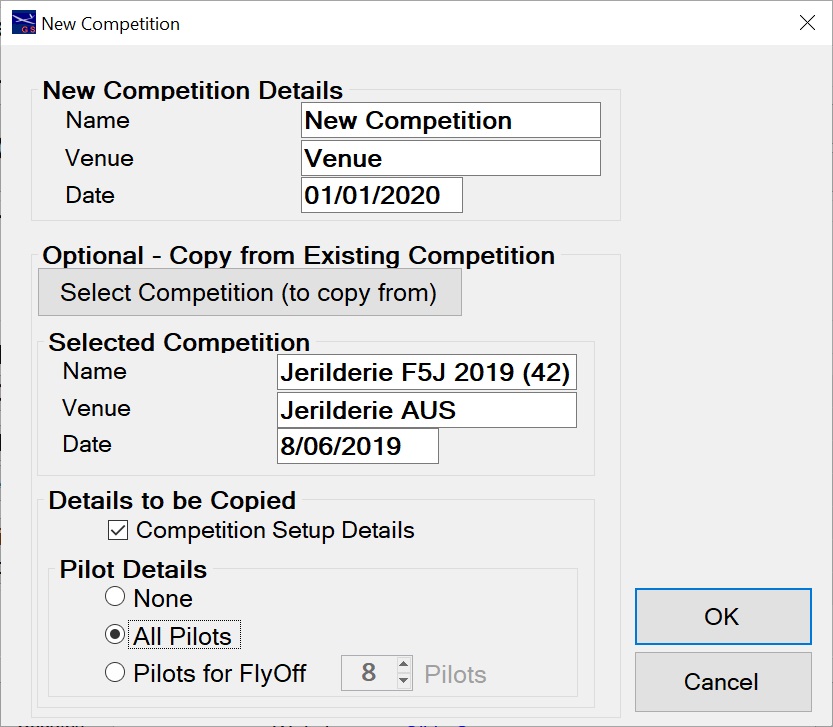
This screen appears when you click on Competitions→New from the Main Menu.
This is where you create a new competition by giving it a
You can create a new competition with just this information or you can select an existing
competition as a template for the new competition. Setup and/or pilots can be copied.
This saves a lot of time, particularly with entering pilots.
Competition Setup Details
- If checked, the new competition will have the same setup details
as the selected competition.
Pilot Details
- None - do not copy pilot details
- All Pilots - copy all pilots to the new competition
- Pilots for FlyOff - copy just the top pilots
Some setup details need to be changed for fly-off competitions.
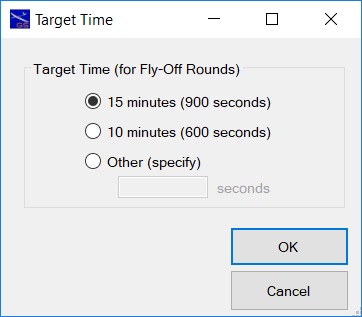
Teams will not be applicable and for F3J and F5J the target time will be longer.
GliderScore automatically de-selects 'Use Teams?' when creating fly-off competitions.
Fly-off target time is selected in this screen.
The fly-off competition is created with the selected time.
When finished, click OK to go to the next screen. Click the Setup Comp tab (above) for details.
See how to setup a competition by copying from an existing competition.
Competition Setup
Setup Competition
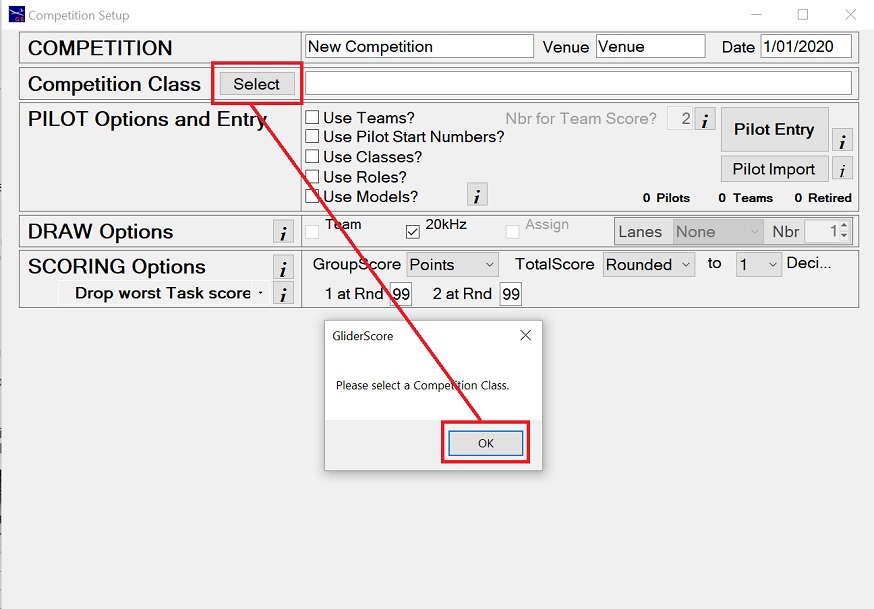
Complete the form in the following order
- Select the Competition Class from the drop down list
- Pilot Options
- Pilot Entry
- Draw Options
- Scoring Options
- Scoring Rules (see Scoring Rules tab)
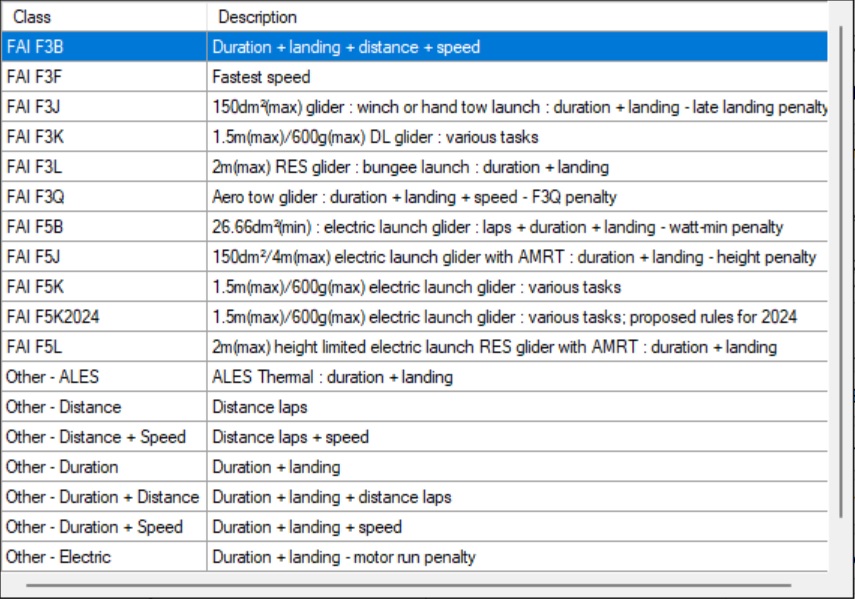
These are the competition classes currently supported by GliderScore.
Automatic Recalculation
Changing any of the Scoring Options (Group Score, Total Score rounding or Total
Score decimals)
will trigger a recalculation of all scores.
Click on the tabs for more information.
The latest FAI rules can be found
here
under 'Sporting Code'.
ALES competitions are run to a variety of local rules but the usual format is to
be found here.
To view a setup video for your favourite competition, click on one of the links on the side menu.
This video shows how to setup an F3B competition.
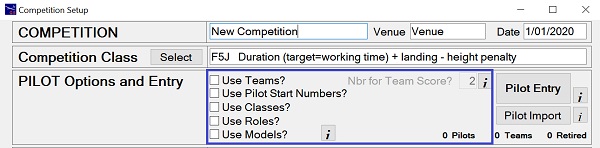
Competition Setup
Pilot Options
Tick the boxes to access these options in the Pilot Entry screen.
- Use Teams
- to enter team numbers against pilots
- enter the number of pilots to be counted for the teams result
- enables the Use Team Protection option in Draw Options
- Use Pilot Start Numbers - to give pilots a specific number for this competition
- Use Classes - generally used to classify pilots as (E)xpert, (A)dvanced, (J)unior
etc. but can be used for any purpose. Report information only
- Use Roles - used to assign a Role to each entrant.
The Role must exist in the Roles table (access from Main Menu).
If using Roles, entrants can include (non-flying) officials.
By using Roles, identification Badges can be printed for non-flying officials, as well as for pilots.
- Use Models - to record a model or models against each pilot
The next step is to click the Pilot Entry button to get the Pilot Entry screen.
To learn about Pilot Entry, click the Pilot Entry tab.

Competition Setup
Pilot Entry/Pilot Import
There are two methods for entering pilots in a competition.
Pilots can be entered directly by reference to the Pilots table (Pilot Entry), or
pilots can be imported into a competition from a file (Pilot Import).
It is also possible to use both methods for the one competition.
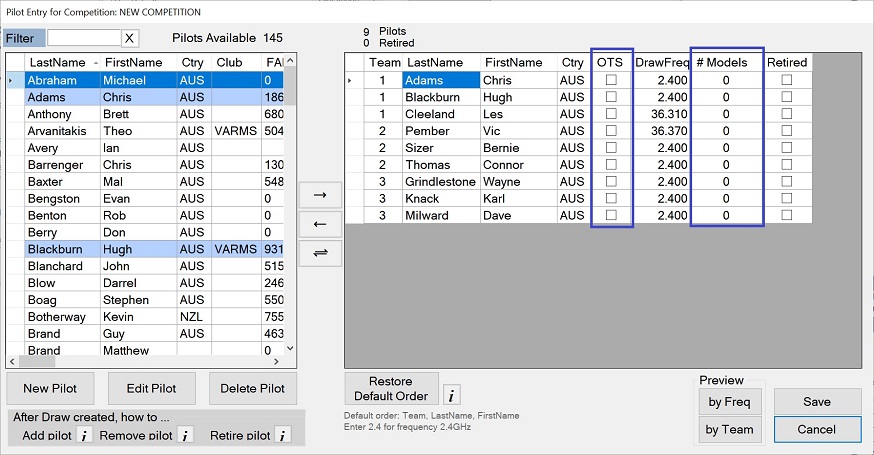
Pilot Entry using the Pilots table
- Select pilots on the left, and double click (or use the arrow key) to move them
into the competition
- Pilots Available can be filtered on last name.
Type the first few letters of the name that you are looking for in the 'Filter'
box.
Click the 'Clear' button to cancel the filter.
- Edit the Draw Frequency directly in the grid
- A column is provided for each of the selected Pilot Options
Use Teams
In this case 'Use Teams?' was selected and so the Team number and 'OTS' columns are visible.
'OTS' means Omit from Team Score. Team results will omit the scores of selected pilots.
Use Models
In this case 'Use Models?' was selected and so the column "# Models" is visible.
Click in this column to register models for each pilot.
See further down this page for more information about Models.
- New Pilots can be added to the database, and then to the competition
- Pilot records can be edited from this screen by using the 'Edit Pilot' button.
- Preview entries by frequency and/or team for quick checking
- It is possible to add a pilot to the draw (a late pilot) without re-doing the draw
Switch Pilots button
The Switch Pilots button has both left and right pointing arrows.
This button is visible only after the draw has been made.
It works this way ...
1. Select a pilot on the left who is not in the competition.
2. Select a pilot on the right (the pilot to be replaced by the first pilot).
3. Click on the Switch Pilots button to make the first pilot replace the second pilot throughout the competition.
This works at any stage of the competition, regardless of whether scores have been entered.
It can fix issues where a pilot is entered by mistake (similar name) and this needs to be fixed.
It is not necessary to use this function to change a pilot's team. Just change the team number in the Pilot Entry screen.
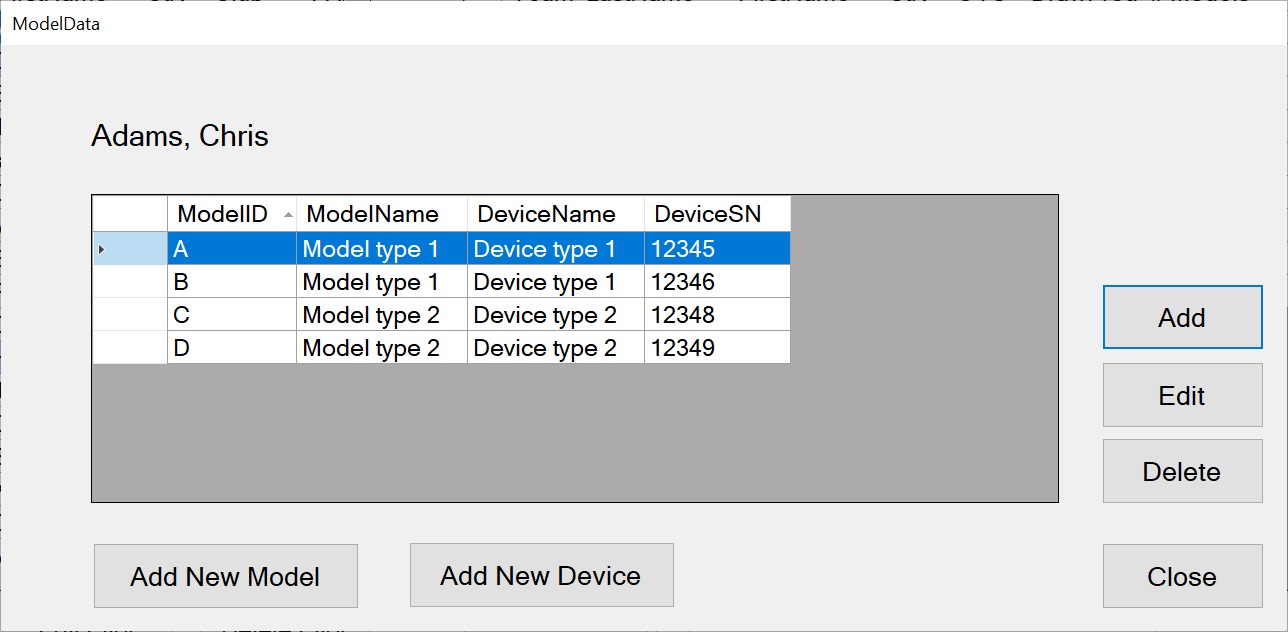
Use Models - Model Data
Click in the '# Models" column to see the Model Data screen.
Click on 'Add' in the Model Data screen to add models.
The Model ID of the glider used can be recorded on the Score Card, in the Scoring Screen and when eScoring.
There is a 'Models' report available from the Reports menu.
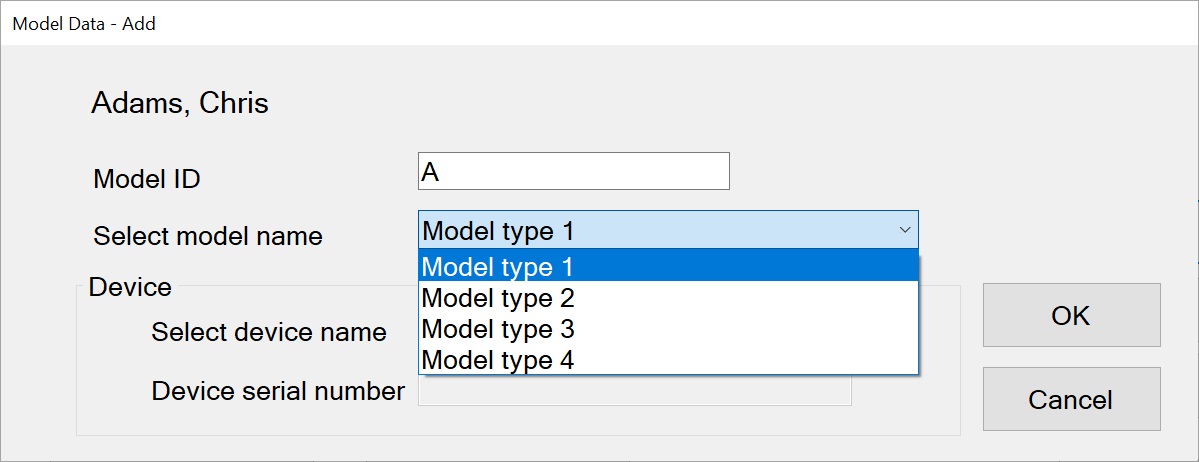
Use Models - Add Model Data
- Give the model a unique Model ID.
- Select the Model Name from the dropdown box.
- Optional - Select the Device Name from the drop down box.
- Optional - Enter the serial number of the device.
Pilot Entry using Pilot Import
'Pilot Import' allows you to import pilots into your competition from a file.
New pilots will be added to the Pilots table.
Pilot Import - File Specifications
- File type: '.csv'.
- Field delimiter: comma ',' or semi-colon ';' (according to your region).
- File name: any name that ends in '.csv'
- File location: any location accessible by your computer.
This type of file can be created easily using Excel.
Use the first row of your file for field headings of your choice. This row will be ignored during the import process.
There must be field headings for all 18 fields in the file.
The fields in the file must be in the exact order below.
Data for fields 1 to 4 will be sufficient for most competitions.
- 1 FirstName (text, max 20 characters. No commas or semicolons).
- 2 LastName (text, max 20 characters. No commas or semicolons.).
For existing pilots, name data to be identical to the name in the Pilots table.
- 3 Role (text, max 6 characters. A value in the Roles table. Normally = 'Plt')
- 4 DrawFreq (decimal, max 3 decimal places. Leave blank if Role is not 'Plt')
Data for the remaining fields is optional. The field headings are mandatory.
- 5 Team (integer. Defaults to 0 if blank)
- 6 PilotClass (text, max 4 characters. Defaults to ' ' if left blank or Role <> 'Plt')
- 7 Country (text, max 4 characters)
- 8 Club (text, max 50 characters)
- 9 FAINumber (text, max 8 characters)
- 10 OtherRegistration (text, max 8 characters)
- 11 FAI_ID (text, max 6 characters)
- 12 Street (text, max 50 characters)
- 13 Town (text, max 50 characters)
- 14 State (text, max 50 characters)
- 15 PostCode (text, max 50 characters)
- 16 Email (text, max 50 characters)
- 17 PrivatePhone (text, max 50 characters)
- 18 WorkPhone (text, max 50 characters)
WARNING - Before import -
Make sure that any pilots for import who are already in your database have their
names spelt exactly the same way in the .csv file. If they are spelt even
slightly differently you will be asked whether they match a person in your Pilots table.
Entrants that do not have a match will be added to your Pilots table.
Pilots already in the Pilots file will have new data updated. All pilots will be entered into the competition.
After import -
The Pilot Entry screen will open. Check all pilot details such as:
- Team number
- Frequency
- Correct spelling of first and last name
- Country code
If using Start Numbers, either fill these automatically or manually.
If you add a new pilot by mistake -
- In Pilot Entry, remove the pilot from the competition.
- In Main Menu → Pilots, delete the pilot record.
Competition Setup
Draw Options
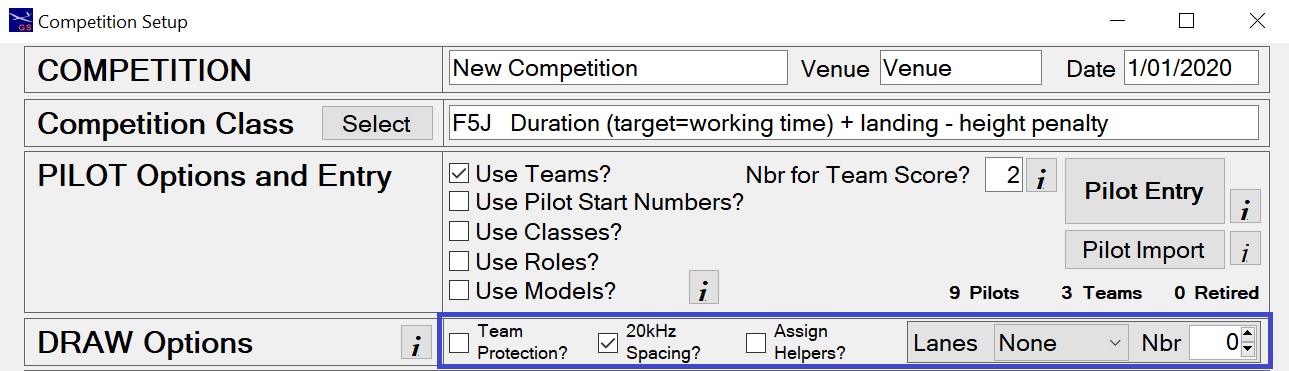
Team Protection
- For group scored tasks, pilots from the same team will be drawn in different groups.
- For 'one at a time' tasks (Speed, F5B and F3F), pilots from the same team will
be separated in the order.
20kHz spacing
- Pilots will be separated by at least 20kHz in the draw (except 2.4GHz)
Assign Helpers?
- Systematically assigns a helper to each pilot in each flight group (as part of the draw process).
- The assigned helpers appear in the scoring screen, scoring sheets, most draw reports, score cards and score records.
- Assigning helpers achieves maximum interaction between all contestants so that the less experienced pilots can learn from experienced pilots.
Particularly suitable for smaller F3K and F5J competitions where there are no teams and two or more groups per round is chosen.
- Available for single task competitions (F3J, F3K, F3L, F5J, F5K, Thermal, Electric, ALES)
- Not available where team protection is selected.
- Not available for multi-task competitions (F3B, F3Q).
- Not available where there is one group per round (F3F, F5B).
- Not available where pilots enter to fly in more than one class.
Lanes [None, Random, Team or Closest]
- Available if the ONLY task to fly is duration
Includes F3J, F3L, F5j, F5K, Thermal, Electric and ALES
- Lanes are assigned during the draw process.
- Lanes can be manually re-assigned in the Scoring screen (after the draw is made).
- If None - Pilots will not be allocated to lanes.
- If Random - Pilots will be randomly but systematically allocated to lanes.
- If Team - A different lane will be allocated to each team for each round.
- Where team members fly in consecutive groups (within a round), they will fly from the same lane.
- If Closest - Pilots will be given the lane that is closest to their team number.
- The number of lanes is to be specified.
- In larger competitions the number of teams may be greater than the number of lanes.
Competition Setup
Scoring Options
These are overall settings for the competition.
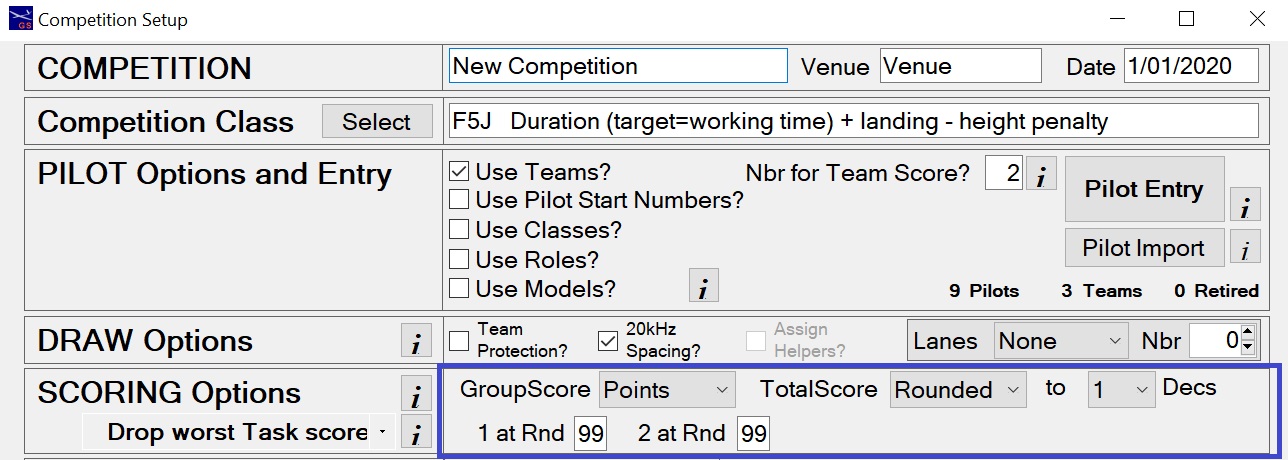
- GroupScore
- There are three options for Group Scores.
- 'None' - No group scoring. Raw scores (points) are used
instead.
- 'Points' - Group Score of 1000 to the pilot with the most
points.
- 'Time' - Group Score of 1000 to the pilot with the best
time. Landing bonus added to group scores.
- Rounded or Truncated
- The score can be either rounded
or truncated to a specified number of decimals (see below).
Under F3J rules (2011) the Total Score is truncated.
- Decimals
- Specify the number of decimals for the score calculation.
Choices are 0 - 3 decimals.
Drop Worst Scores (see F3Q below)
Generally, if scores are to be discarded, it is the worst Task score from each task that is discarded.
However, in the F3Q rules it is the worst Round score that is discarded.
The ability to select 'Drop worst Round score' only becomes available when the selected class is F3Q.
Otherwise, the only choice is 'Drop worst Task score'.
- Enter the round numbers at which 1 and/or 2 worst scores are to be dropped.
Enter 99 in any box to prevent dropped scores.
Drop Worst Scores - F3Q
- Enter the round numbers at which up to 5 worst round scores are to be dropped.
Note that five Drop Scores selection boxes show with class F3Q selected.
Enter 99 in any box to prevent dropped scores.